Quick answer
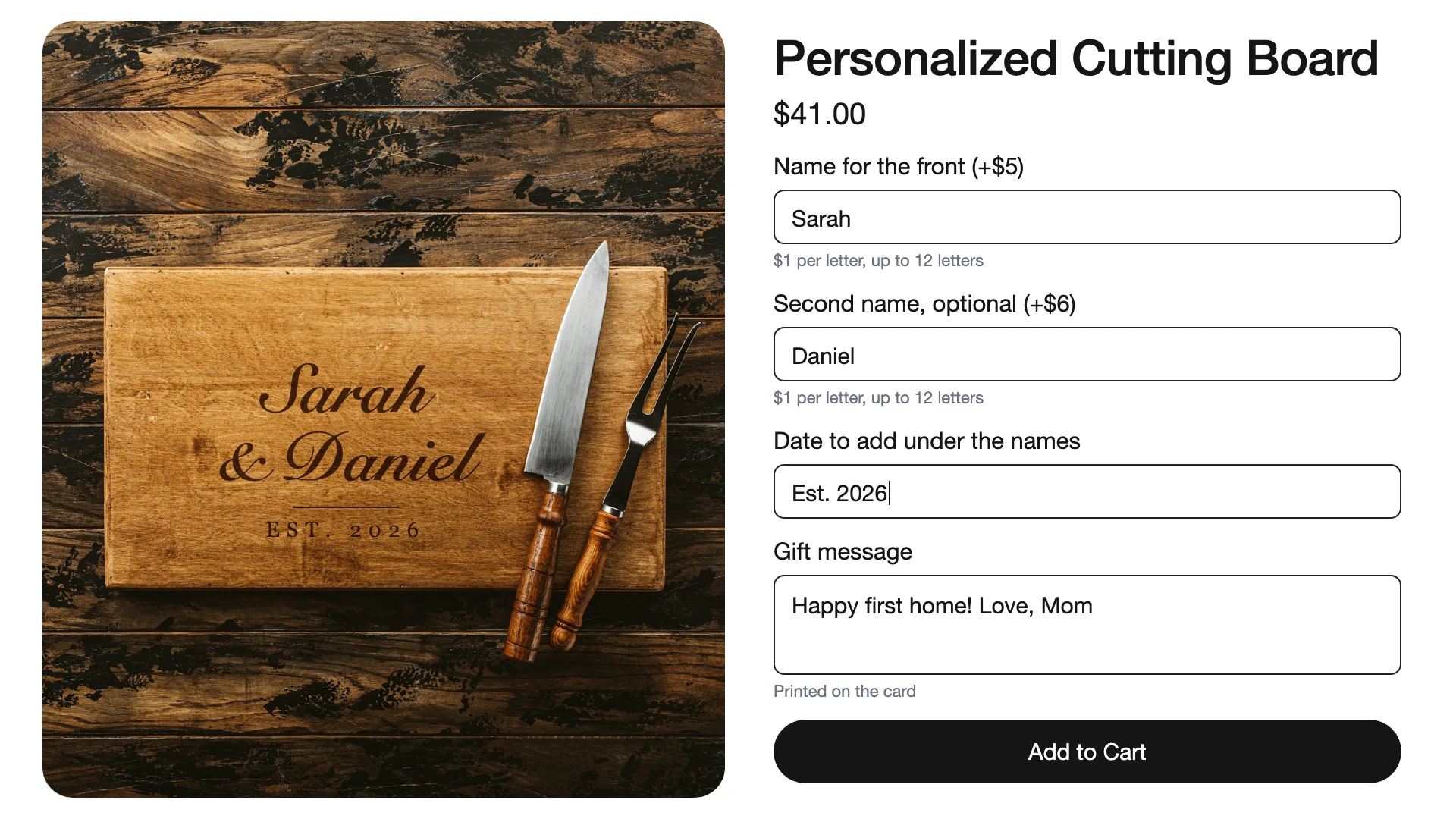
Wix gives each product either 2 custom text fields or up to 10 modifiers, depending on your store's version, and none of them can add a price. To collect more details, add text fields with a product options app. You can add as many as you need, set a length limit on each, and charge for the text if you want to.
What Wix gives you
Older Wix stores have a custom text setting with room for 2 fields per product. Newer stores have modifiers instead: up to 10 per product, made of text boxes, dropdowns and color swatches.
Both are free and fine for a short note. They get tight when a product needs more details, like several names, a date and a message, and they can't charge for anything the customer types.
| Wix custom text or modifiers | Product options app | |
|---|---|---|
| Number of text fields | 2, or up to 10 modifiers shared with other choices | As many as you need |
| Longer messages | One-line box | One-line or multi-line box |
| Length limit | Yes | Minimum and maximum length |
| Charge for the text | No | Per character or by length |
| Show a field only when it applies | No | Yes, on paid plans |
How to add more text fields with an app
Step 1: Install the app
Add Product Options by PowerUp from the Wix App Market. It is free to install and adds itself to your product pages, so there is no code to paste.
Step 2: Create an option set
In the app's dashboard, click Add new option and give the set a name you will recognize, like "Personalization".
Step 3: Add a text field for each detail
Add a Textbox for short answers, like a name or initials, and a Multiline field for longer ones, like a gift message or special instructions. Add one field for each detail you need. There is no limit on any plan.
Step 4: Write a clear label and set the rules
Give each field a label shoppers understand, like "Name for the front", and use Description for a short hint. Turn on Required field if you can't make the order without it.
Set a Min length or Max length so the text fits the product, for example 12 characters for a name on a mug.
Step 5: Charge for the text if you want to
Open Pricing in the field's settings to charge per character, like $1 per letter on a name sign. Spaces are free unless you turn on Charge for spaces. You can also charge by range, like $10 for up to 10 characters and $20 for up to 20. The price updates as the customer types.
Step 6: Choose where it shows and save
In the Rules tab, under Where to show, pick the products or collections. Click Save, then open the product on your live site and fill in the fields to test it.
Tips for products with several text fields
- Put the fields in the order the customer thinks about them, like names first and the message last.
- Use the label to say exactly what goes in the box, like "Second name (optional)", so you don't have to email the customer later.
- On a paid plan, show a field only when it applies, like the gift message only when the customer picks gift wrap. The product page stays short for everyone else.