Quick answer
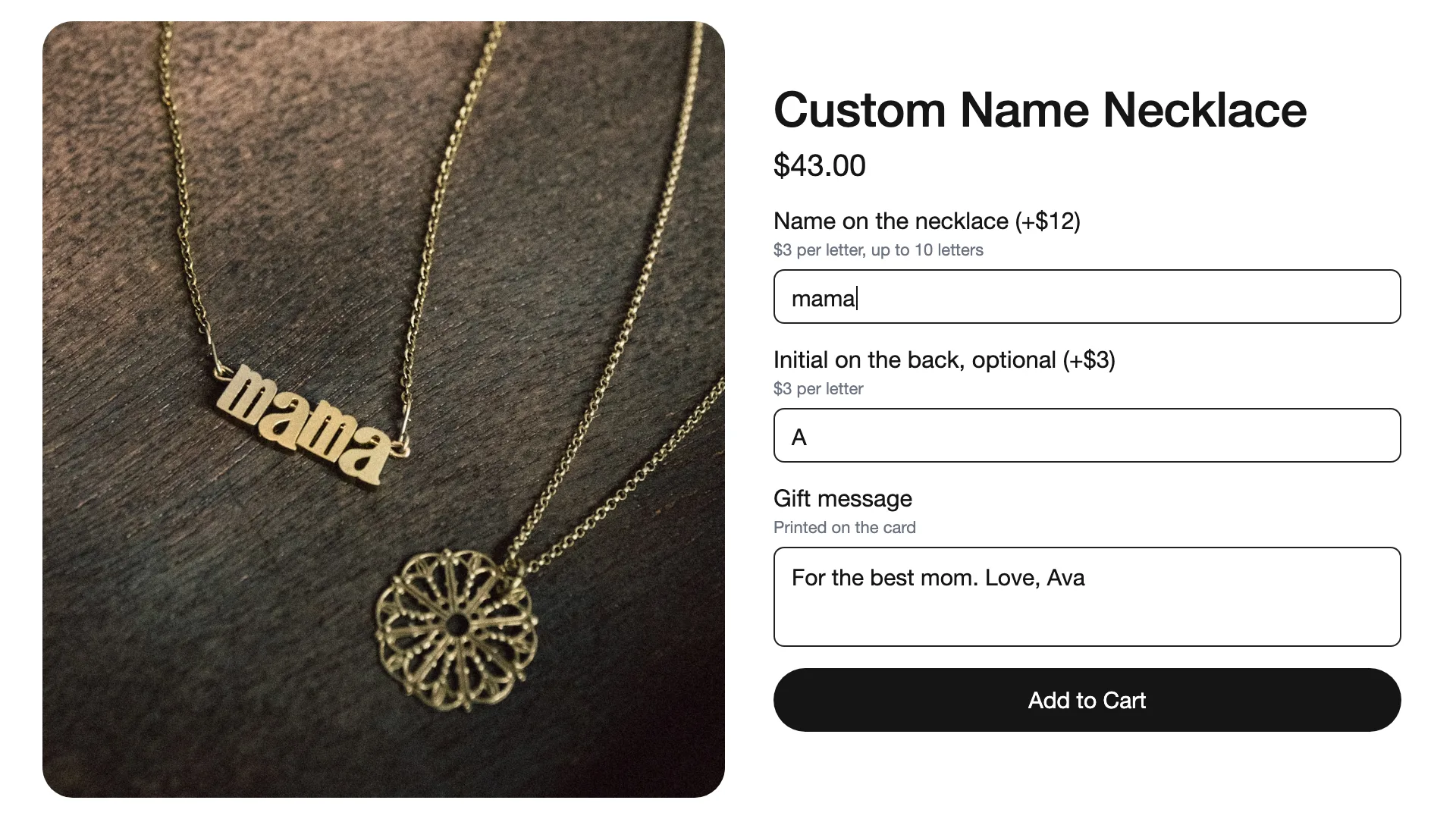
Wix text fields collect what the customer types, but they can't change the price. To charge per letter, add a text field with a product options app and set a price per character. The price updates as the customer types and is added to the cart, and spaces are free unless you choose to charge for them.
Why Wix can't do this on its own
Wix custom text fields and text box modifiers are free. Whatever the customer types, the product price stays the same, so a 4-letter name and a 12-letter name cost the same.
That matters for products priced by the letter, like name necklaces, letter garlands, name signs and custom banners.
The usual workarounds
Store owners often try one of these first. Each one leaves room for mistakes.
| How it works | Downside | |
|---|---|---|
| Length options | Choices like "1 to 10 letters" and "11 to 20 letters", each with its own price | Customers can pick the wrong range for the text they type |
| Quantity as letters | One product priced per letter, and the customer sets the quantity to match | Confusing at checkout and easy to get wrong |
| Custom code | A developer builds a price calculator | Wix doesn't let code set the cart price directly, so it gets complicated |
| Product options app | A text field with a price per character | A few minutes to set up |
How to charge per character with an app
Step 1: Install the app
Add Product Options by PowerUp from the Wix App Market. It is free to install and adds itself to your product pages, so there is no code to paste.
Step 2: Create an option set and add a text field
In the app's dashboard, click Add new option and name the set, like "Personalization". Add a Textbox for a name or a word, or a Multiline field for longer text, and give it a clear label like "Name (up to 10 letters)".
Step 3: Set a maximum length
In the field's settings, set a Max length that fits the product, like 10 letters on a necklace. Customers can't type past it, so every order fits.
Step 4: Set the price per character
Open Pricing, keep Same price per character, and enter the Price per character, like $1. A 5-letter name then adds $5 to the product price.
Step 5: Decide whether spaces count
By default, spaces and line breaks are free and only letters, numbers and symbols are counted. Turn on Charge for spaces if every space costs you the same as a letter, like a banner where each space is a blank flag.
Step 6: Choose where it shows and save
In the Rules tab, under Where to show, pick the products or collections. Click Save, then open the product on your live site and type a name. The price in the field's label updates as you type, and the same amount is added in the cart.
Price by length instead
In Pricing, you can also charge by range instead of one price per letter.
- Price per character, by range: each letter is charged at the rate of its range, like $1 each for the first 10 and $0.50 each after that.
- Fixed price, by range: one price for the whole text, like $10 for up to 10 characters and $20 for up to 20. Click Add range to add more.
Tips
- Say the price in the label or description, like "$1 per letter", so the total isn't a surprise.
- Add a separate text field for each line or name, each with its own price and length limit.
- Number fields have the same pricing options, for products priced by size or amount.