Quick answer
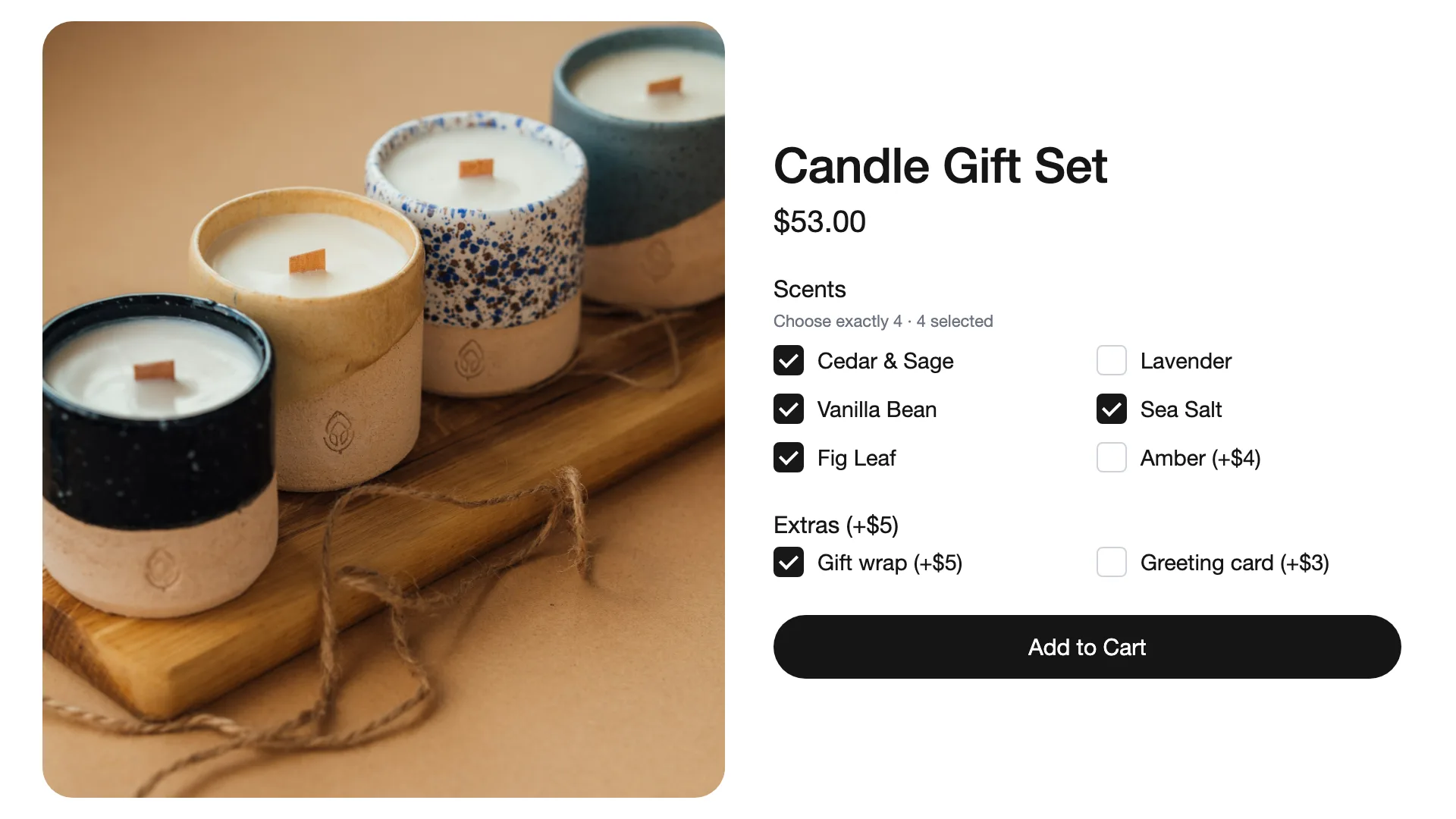
Wix product options let shoppers pick only one choice per option. To let them pick several, like add-ons or 3 scents for a gift set, add a checkbox option with a product options app. Each choice can have its own price, and you can set how many they must or can pick.
Why Wix allows one choice per option
Every combination of Wix product options becomes a variant, and a variant is one exact version of the product. That is why each option, like size or color, takes a single choice.
It works for picking a size. It doesn't work when a shopper wants gift wrap and a card, or 3 flavors in one box.
The usual workarounds
| How it works | Downside | |
|---|---|---|
| A yes or no option for each extra | "Gift wrap: Yes / No", "Card: Yes / No" | Each one uses up one of the 6 Wix options and multiplies your variants |
| A notes field | Shoppers type what they want | No prices, and you read every order by hand |
| Product options app | Checkboxes, or multiple selections on any choice list | A few minutes to set up |
How to allow multiple choices with an app
Step 1: Install the app
Add Product Options by PowerUp from the Wix App Market. It is free to install and adds itself to your product pages, so there is no code to paste.
Step 2: Create an option set
In the app's dashboard, click Add new option and give the set a name you will recognize, like "Extras".
Step 3: Add a Checkboxes option
Add a product option and choose Checkboxes. Shoppers can tick as many choices as they like.
Prefer buttons, a dropdown or swatches? Add that type instead and turn on Allow multiple selections in its settings.
Step 4: Add the choices and their prices
Add a choice for each extra, like gift wrap, a greeting card and rush delivery. Enter a price adjustment on any choice that costs more, and leave it at 0 if it's free. The label shows the total of everything the shopper ticked.
Step 5: Set how many they can pick
Use Minimum selections and Maximum selections to set the rules, like exactly 3 scents for a gift set. Leave the maximum empty to allow any number.
Turn on Show selection guidance and shoppers see a short line like "Choose up to 3 · 2 selected" as they pick.
Step 6: Choose where it shows and save
In the Rules tab, under Where to show, pick the products or collections. Click Save, then open the product on your live site and tick a few choices to test it.
Tips
- For a long list, set Columns to 2 or 3 so the choices don't push the Add to Cart button far down the page.
- Turn on Required field together with a minimum when the shopper must pick, like a pick-3 box.
- Don't type prices into choice names. Enter them as price adjustments, so the label and the cart add them up for you.